


Welcome to InSite
InSite is designed for students and employees of Contra Costa College, Diablo Valley College and Los Medanos College. Everything you need to be a successful student, and our collection of online tools for employees, is right here at your fingertips. Get connected, get around and get the most out of your time on campus with InSite!

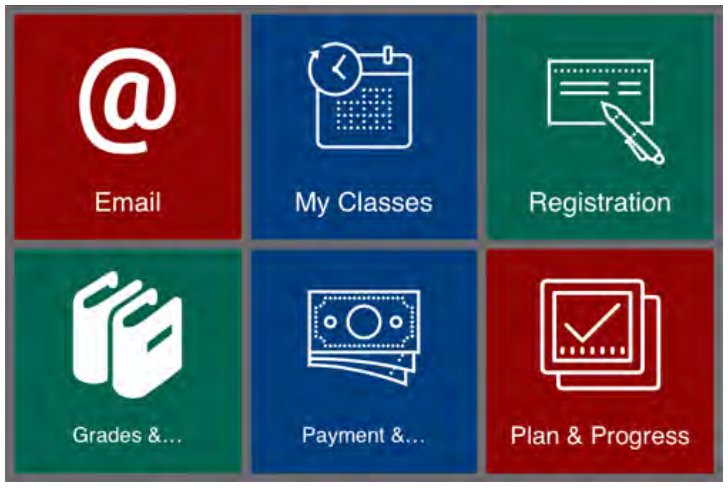
InSite tiles
Each InSite tile represents a menu or service. Tapping a tile will open the menu or display additional information. The items on a menu can then be tapped to open that feature.
Note that some items open the browser on your device to display contents and features on an external web page.
Finding Insite
Access InSite at m.4cd.edu, or download the InSite app for your mobile device. Search for the keyword InSite in the Apple App Store or Google Play, or click one of the links below



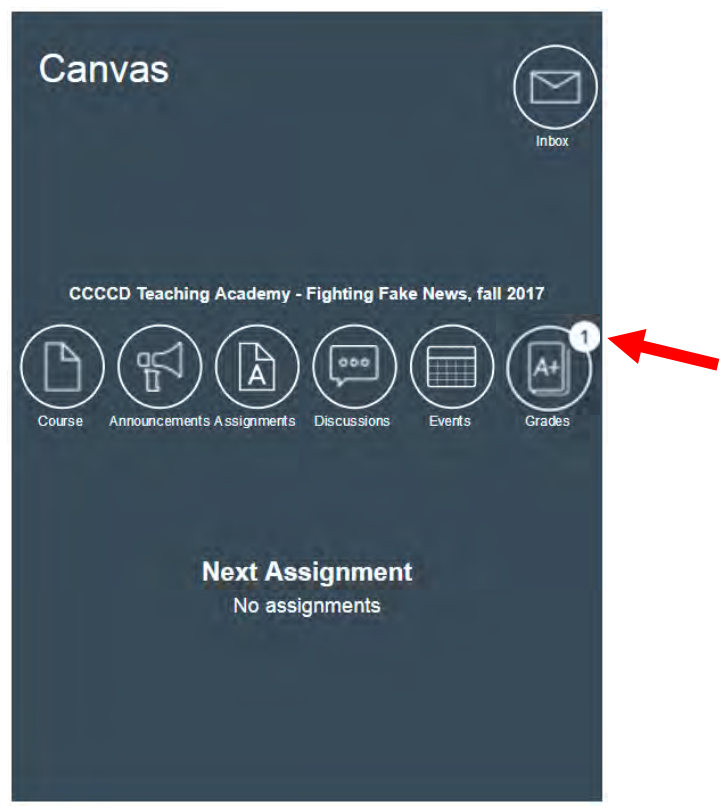
Canvas classes and notifications
The Canvas tile takes you directly into your classes through the Canvas app (download separately).
Each icon displays a badge counter to notify you.
Tap the icon to access the content for your class.
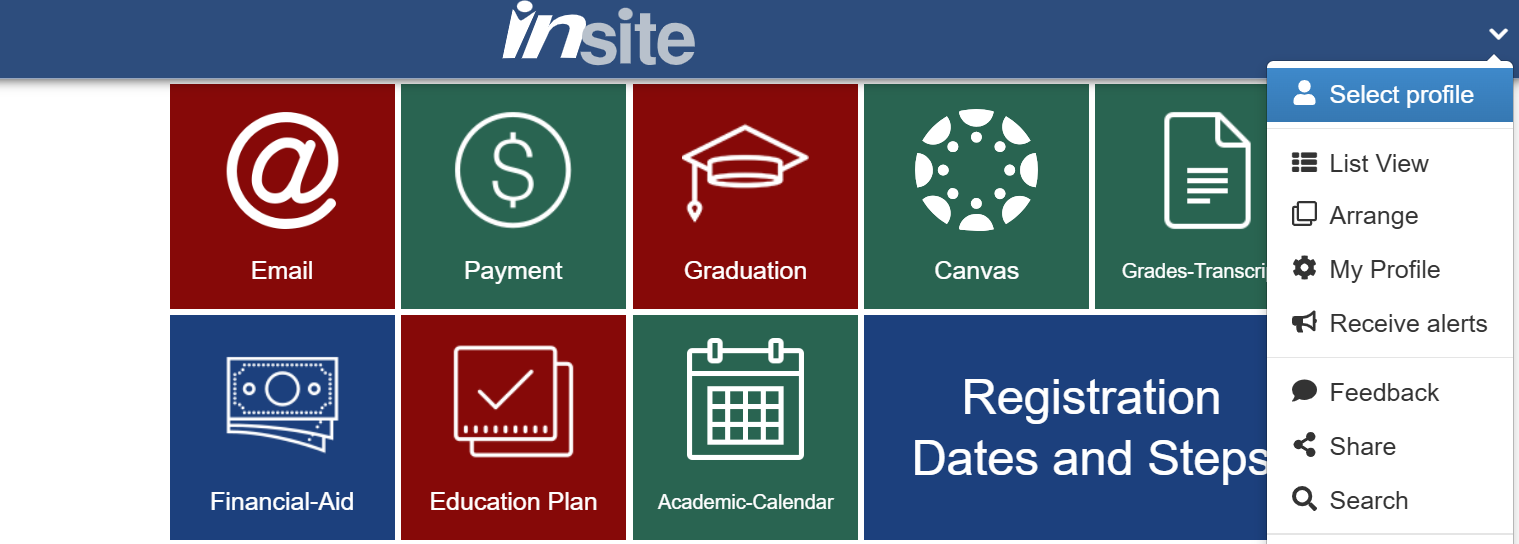
Search InSite
Not sure where to find what you're looking for? InSite's Search feature will take you right there!
Tap the drop-down arrow on the right side of the Home header and select Search or In-app search (whichever appears in your version) and then type in the search box.
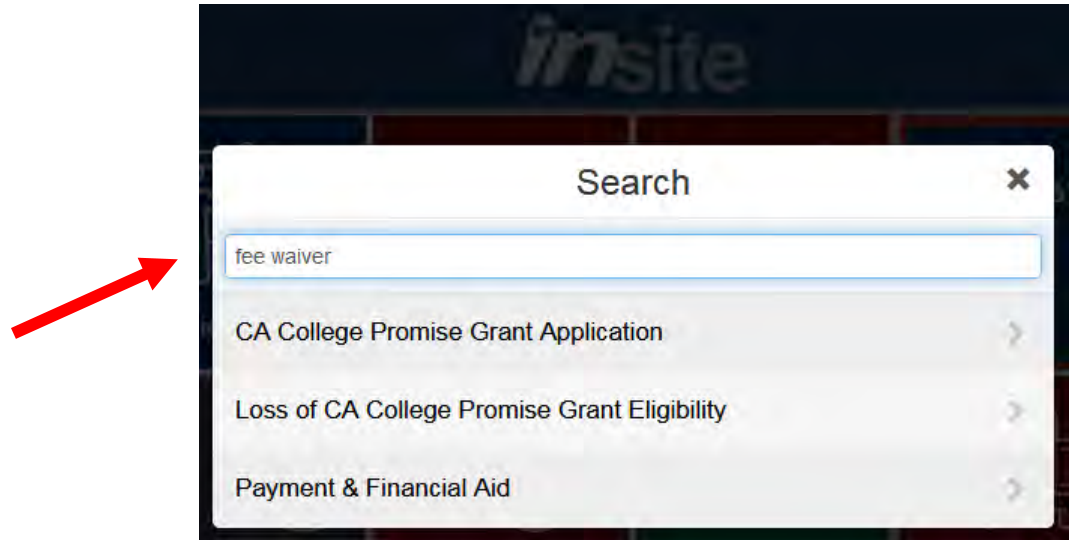
A list of menus and options will appear for you to choose from.
Arrange and hide tiles
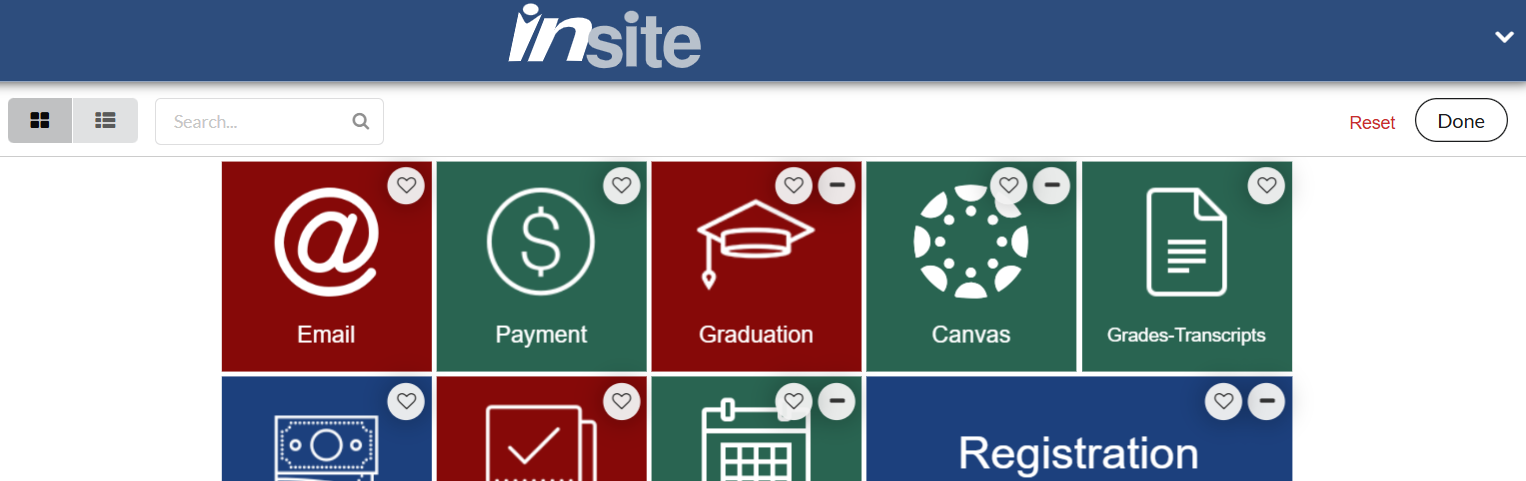
Want to personalize InSite? Use the Arrange feature to hide tiles and move them. Create a unique display for each of your devices. Tap the drop-down arrow on the right side of the Home header and select Arrange.
Tiles with a "-" (minus symbol) in the upper right corner can be hidden. The Reset link restores the tiles to the original default setting.
Send feedback
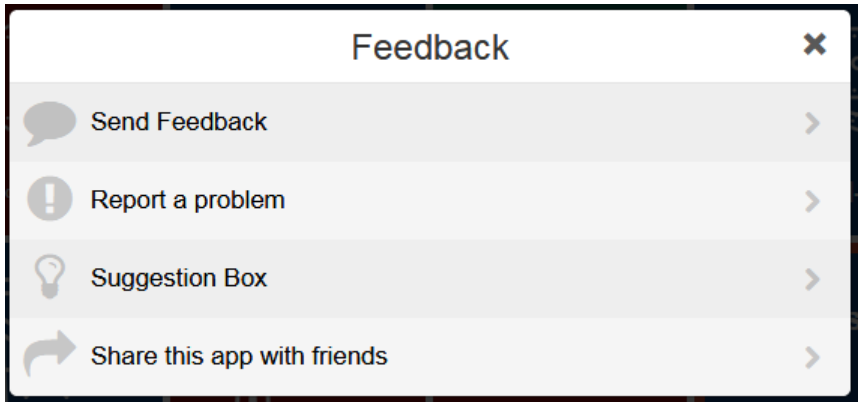
Let us know what you think about InSite. Tap the drop-down arrow on the InSite Home header and select Feedback, then report problems and suggest new features.
Help and technical assistance
Thank you for using InSite. We hope you find it useful and we look forward to your feedback.
Remember to use the Search function if you’re having trouble finding anything.
For technical assistance with your InSite username or password, please contact our the District Office Help Desk at (925) 229-6888 or helpdesk@4cd.edu. (Please include your Student or Employee ID in all communications.)